Introduction
I made the switch from Google Workspace to Zoho Workplace, It took me about 10 days to complete the whole migration for all services, here is what I learned throughout the process.
Despite the name confusion between Workspace and Workplace, the differences go far beyond branding. When I went through this transition, I quickly realized there were many strategic, technical, and operational factors to consider.
When I established Digital Era Hub a couple of years ago, I had to make many fast decisions. As a founder, you already have a lot on your plate, and productivity tools are often chosen quickly just to keep things moving. That was exactly my situation when I selected Google Workspace as our core productivity and collaboration platform.
I don’t regret that decision at all. Google Workspace is a solid, reliable ecosystem. However, as our team began to grow, I realized I could significantly increase productivity by consolidating everything into a single ecosystem, and as a Zoho Authorized Partner. I already relied heavily on Zoho for CRM, finance, automation, and operations. At the time, though, I wasn’t using Zoho Workplace. Eventually, I decided it was time to explore it seriously.
At first, I was hesitant. The switch felt like a hassle for two main reasons:
I relied on Google to communicate with clients, host meetings, and run webinars. Could Zoho realistically replace all of this without creating friction for clients?
Could I migrate everything safely? With so many Google services in use, would I lose data or break critical workflows?
This hesitation was reinforced by my 10+ years of experience working with Zoho partners, including several Zoho Premium Partners here in the US. Surprisingly, very few of them were using Zoho Workplace internally.
Why Change?

Google Workspace is an excellent platform. More importantly, it’s familiar. Almost everyone knows how to use Gmail, Google Drive, Docs, Sheets, Slides, and Calendar. Google’s recent AI integrations also add real value, and I adopted many of those features quickly.
However, as a small business, I wasn’t using Google beyond its core productivity tools. That made the decision easier but not trivial. The switch still required careful planning.
Becoming a Zoho Partner played a role as well. If these tools work for Zoho itself, they should work for my business. I had already implemented Zoho Workplace for many clients and had seen the power of its native integrations.
Transition Methodology
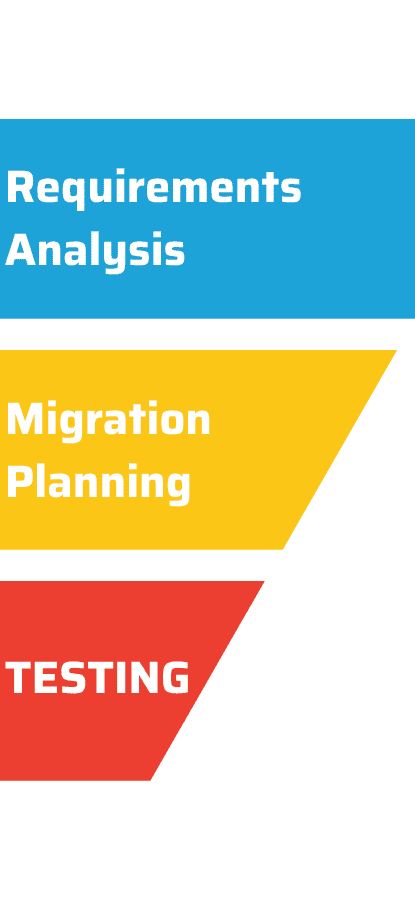
I divided my transition into three core phases:
1. Requirements Analysis
I created a detailed document listing every Google service we were using. not just Gmail, Drive, and Docs. This included for instance YouTube channel ownership, Google Business Profile, Google login (OAuth) for third-party apps, Calendars and shared resources
There were a lot of essential services that can't risk to stop. This document became the foundation for the entire migration plan.
2. Migration Planning
Not everything needed to be migrated at once. Using the requirements document, I created a phased plan:
Non-essential services first
Services that require longer transfer times (e.g. YouTube, Business Profile) due to Google policy
Data-heavy migrations after work hours
Email migrations over weekends
For example, YouTube and Google Business Profile ownership transfers require a minimum of 7 days, so those needed to start early. Email migration required careful timing to avoid message loss.
3. Testing Period
Migration Best Practices & Lessons Learned
This article isn’t meant to replace Zoho’s official documentation or tutorials. Instead, I’ll highlight key lessons and pitfalls based on real-world experience. Let's dive into each service migration in the following sections
Migration from Google Drive to Zoho WorkDrive:
Drive migration can be done in a few different ways, depending on whether you want to transfer personal files vs team files. I personally migrated using the Google Cloud Platform (GCP) app method (Download the full how-to from here). I strongly recommend this approach if you want a centralized, admin-led migration instead of asking each employee to manually move their own folders.
The biggest advantage is that it helps ensure everything is moved in an organized way, and it maintains sharing permissions for most Google Drive content—so while it does require a bit of technical setup, it’s absolutely worth it if you want a clean transition.
Some best practices and lessons learned:
When you create your GCP app, you’ll generate a Service Account and an OAuth 2.0 Client ID. Keep those details handy—you may reuse them later if you migrate other Google services (like Gmail) into Zoho’s ecosystem.
Create your Zoho users first, and make sure they’re invited into WorkDrive before you kick off the migration. During the migration setup, you’ll need to map Google users to Zoho users, and that part goes much smoother when accounts already exist.
Important limitation: Sharing permissions for files and folders inside Shared Drives (Team Drives) won’t be retained, so make sure you have a plan for those folders—whether that’s recreating permissions after migration, restructuring ownership, or redesigning how shared-team access will work in WorkDrive.
Finally, don’t treat WorkDrive like “just another Google Drive replacement.” Zoho WorkDrive comes with extra collaboration features, especially for working with external users (clients, vendors, contractors). Once your data is moved, take advantage of those features to improve how your team shares and collaborates moving forward.
Migration from Google Calendar to Zoho Calendar
Migration from Google Calendar to Zoho Calendar is best handled at the individual user level. In other words, you’ll want to notify your team ahead of time that each person will need to export their calendars from Google and then import them into their Zoho Calendar manually. This sounds simple, but in a multi-user organization there are a few important details that can easily get missed.
Here are the key things to consider (especially for team-wide calendar migration):
Calendar sharing works differently in Zoho than in Google. If your organization’s policy allows users to share availability (and most organizations do), you’ll likely need to adjust a few settings inside the Zoho Calendar admin console to match what people are used to in Google.
If you’re using a scheduling tool (like Zoho Bookings), don’t forget to update the default calendar it uses, otherwise meetings may start landing in the wrong calendar after the migration.
Free/busy behavior is one of the biggest “gotchas.” By default, imported calendar events in Zoho may not automatically block availability unless the user enables it in their settings or the event is specifically marked as “Add to free/busy schedule.” This is different from Google’s default behavior, and it matters a lot if you rely on scheduling automation. Because tools like Zoho Bookings won’t treat those events as “unavailable” unless free/busy is set correctly.
Migration from Google Meet to Zoho Meeting
Honestly, nothing major “migrates” here the way Drive or Calendar does. The switch is mostly about getting your team comfortable with the platform and knowing the differences upfront—so you don’t discover them during a client call.
A few things I think are worth knowing before you fully move:
Bandwidth requirements are a bit higher in Zoho Meeting. If most of your attendees are on stable connections, you probably won’t notice. But if you regularly meet with clients in less developed countries or rural areas where bandwidth can be limited (especially under ~1-2 Mbps), Zoho Meeting can start to lag. The good news is there are practical options to reduce bandwidth usage, like stopping received videos and using the built-in network/bandwidth check when issues come up.
Zoho Meeting’s webinar capability is a real upgrade. Zoho’s webinar experience is richer than what most teams are used to with Google Meet, so if you run trainings, demos, onboarding sessions, or marketing webinars, this is one of the areas where Zoho actually adds value beyond “just meetings.”
Recordings are stored differently, and that matters for workflows. In Google, the easiest way to find past meeting recordings is usually to go to Google Drive → Meeting Recordings. In Zoho, I find it easiest to go to meetings.zoho.com and access recordings under Files.
One thing I personally found very valuable: integrating Zoho Meeting with Zoho CRM and WorkDrive. That way, each client’s meeting recording can be automatically stored in the right WorkDrive client folder, and you can even share it with the client without manually downloading, uploading, and emailing links every time.
Migration from Gmail to Zoho Mail
Similar to Drive, I recommend using the GCP app method to migrate from Gmail to Zoho Mail (Download the full how-to guide here). The main difference is that email is much more sensitive operationally, so unlike Drive, this is a migration I’d plan to do overnight or over a weekend, just to minimize disruption and avoid missing emails during the transition window.
The most important part to get right is the MX records. You need to be very careful with the timing, because once you change MX, you’re effectively changing where new emails are delivered.
In my case, I changed the MX records before I started the migration, because I wanted to make sure new incoming emails stopped landing in Google before I began moving the existing mailbox data. That approach worked well for me, but I’ll say it clearly: each organization’s setup is different, depending on number of users, different time zones .. etc. and the “best” sequencing depends on how you want to handle delivery during the cutover (and how comfortable you are with the short transition period).
One other thing to set expectations: Zoho Mail covers everything you’re used to in Gmail, but the one area where I felt Google still has an edge is spam filtering. Zoho’s spam filter is simply less aggressive/powerful, so don’t be surprised if you see a spike in spam hitting inboxes after the switch. The good news is this is manageable, just be ready to fine-tune filters and rules early so your team’s inboxes stay clean.
Migration from Google Chat to Zoho Cliq
Zoho Cliq is one of the most underrated Zoho tools. When used properly, it can transform internal communication far beyond Google Chat or Spaces. This deserves its own article, Subscribe to our newsletter to get notified when we publish that article (expect 1 email/month, we never spam; Promise)
Migration from Google Collaboration Tools to Zoho
Migration from Google Collaboration Tools to Zoho
You will definitely face a learning curve when switching from Google’s collaboration and productivity tools (Docs, Sheets, Slides, etc.) to Zoho’s. At first glance, Zoho’s interface can feel like an older-generation product, especially if your team is used to Google’s clean and modern UI.
But don’t get fooled by the GUI. Zoho’s collaboration suite is actually very powerful and feature-rich, especially if you’re planning to connect it with operational systems like Zoho CRM, contract management, and digital signature workflows. That’s where Zoho starts to feel less like “just office tools” and more like a connected business system.
That said, there are a couple of real limitations to be aware of:
Large files can be challenging. If you work with spreadsheets that have hundreds of thousands of rows, or Writer documents that are hundreds of pages, Zoho can feel slower. I personally didn’t run into bugs, but I did notice lag when managing very large files, most likely because these tools run heavily in the browser.
This doesn’t mean the tools aren’t reliable; it’s more about performance at scale compared to what people are used to in Google’s ecosystem.
And a quick fun fact that puts things into perspective: Zoho Writer launched in 2005, which is about a year before Google released Google Docs in October 2006.
Google-Related Accounts
So what happens to all the other Google services connected to your account i.e. Google Business Profile, Google Ads, YouTube, and anything else tied to Google login?
As I mentioned earlier, each tool or service needs to be evaluated separately, because there isn’t one “master migration” that cleanly transfers everything just because you’re leaving Google Workspace.
In my case, here’s what I ended up doing:
I had to transfer ownership of YouTube and Google Business Profile away from the Workspace account and into a personal Gmail account.
After transferring ownership, I had to wait 7 days before I could safely proceed (Google applies waiting periods on certain ownership/security changes).
Only after that did I go ahead and delete the Google Workspace account.
On the team side, I also had to handle the “hidden” part of the migration:
I asked every team member to review all services they sign into using their Google account, especially under Third-Party Apps Access (anything connected via “Sign in with Google”).
Many tools do allow switching to a standard login, but it usually means each user needs to create a standalone password (or set up a different login method) for every service they previously accessed through Google SSO.
This step takes some coordination, but it’s the difference between a smooth transition and discovering locked accounts one-by-one after your Workspace is gone.
Bonus: LastPass to Zoho Vault Migration
During the migration, I decided to replace LastPass with Zoho Vault. This turned out to be a smart consolidation move and deserves a dedicated comparison article. Subscribe to our newsletter to get notified when we publish that article (expect 1 email/month, we never spam; Promise)
Conclusion
Migrating from Google Workspace to Zoho Workplace brought significant benefits to our organization. With proper planning, clear deadlines, and change management, I successfully migrated 8 users with zero data loss. eventually the process can be adapted by larger organizations.
One of my personal goals was to complete this migration internally before offering it as a service to clients. No one wants to experiment on client data.